Use the following steps to submit a revision request for a surcharge filing.
-
Log in to the COTFA application.
-
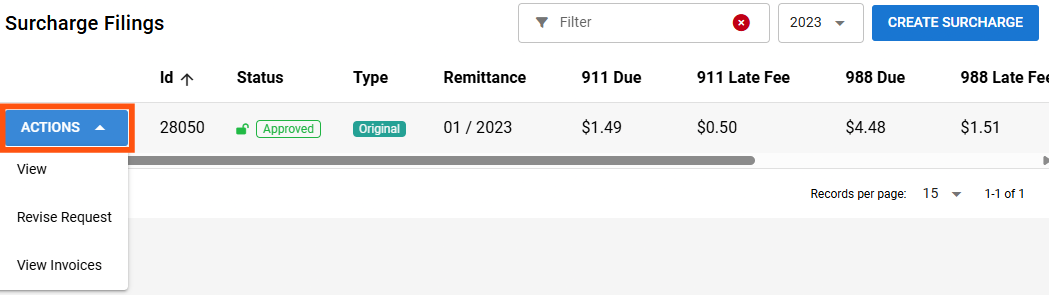
Select Surcharge Filing from the navigation panel. The Surcharge Filings page appears.
-
Select Actions to the left of the surcharge filing you want to revise.
If you do not see any surcharge filings listed on this page, then you may need to change the year in the top right corner of the Surcharge Filings page.
-
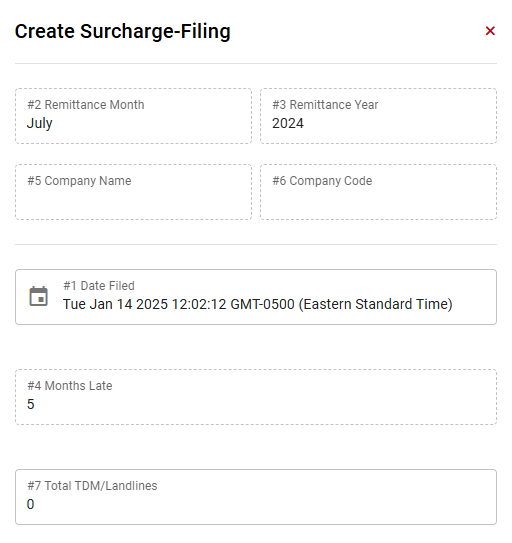
Select Revise Request from the drop-down menu. The Create Surcharge Filing pop-up window appears.
All revision requests must be approved by Rolka Loube staff. An additional revision cannot be submitted for the same surcharge filing until the prior revision request is approved. If there is a pending revision request for a filing, then the Revise Request option will not appear in the drop-down menu.
-
Revise the filing as necessary.
-
Enter the necessary data to complete the surcharge filing. The following fields are required:
-
Preparer Name
-
Preparer Email
-
Preparer Phone
-
Approved Name
-
Company Code, Filing Period, and Reporting Year cannot be edited.
-
Check the box at the bottom of the Create Surcharge Filing pop-up window to affirm that the information is correct and that you have the authority to submit the return on behalf of the company indicated above.
-
Select Create Revision. The message Surcharge Filing has been updated appears in green.