
Profile allows users to do the following:
-
Access Profile
-
Set Avatar
-
Edit Profile
-
Change Password
Access Profile
Access your profile to set your avatar, change your password, and select a contributor. Use the following steps to access your profile.
-
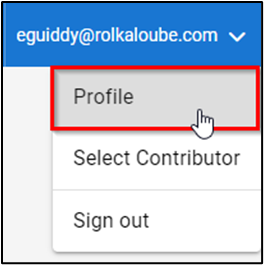
Select your email address in the top right-hand corner of the screen.
-
Select Profile.
Set Avatar
The integration with the Gravatar app allows users to set avatars for their COTFA application profile. Use the following steps to set your avatar.
-
Select your email address in the top right-hand corner of the screen.
-
Select Profile.
-
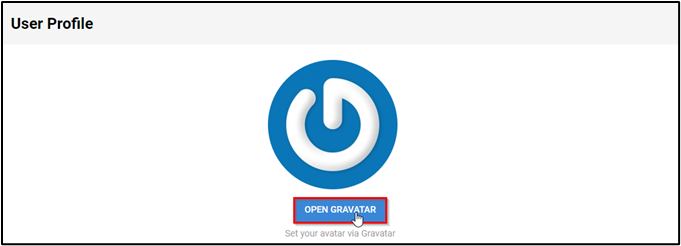
Select Open Gravatar. You will be redirected to the gravatar website.
-
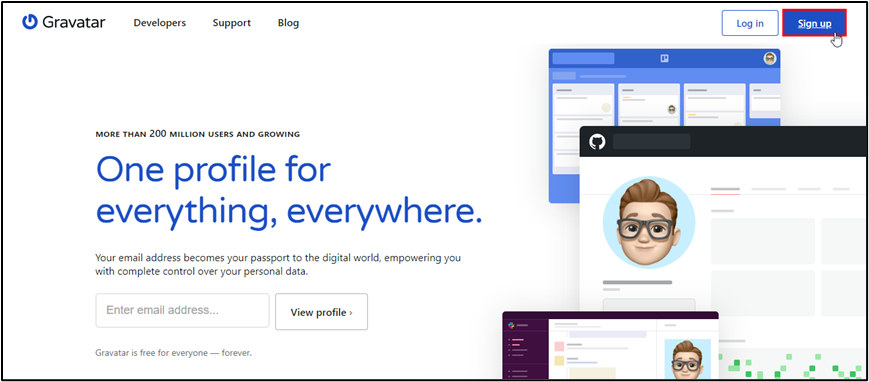
Select Sign Up in the upper right corner.
-
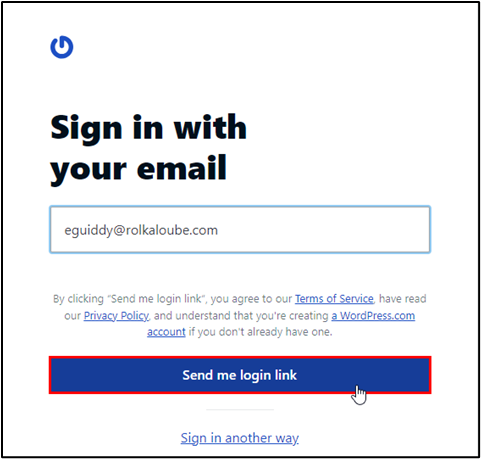
Enter your email address.
-
Select Send me login link. A welcome email will be sent to the email provided.
-
Open the welcome email from Gravatar. If you don’t see the email in your inbox, please check your junk folder.
-
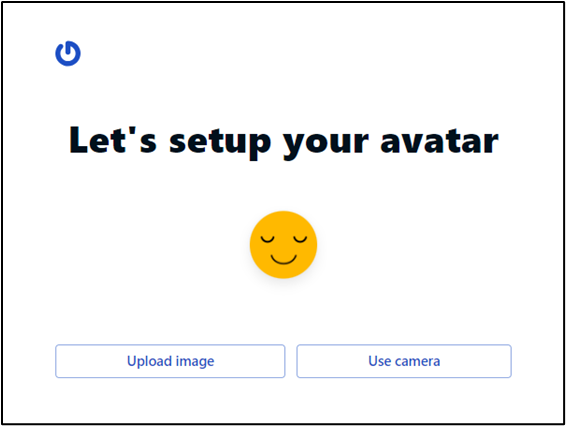
Click the verification link in the email to verify your email. You will be redirected to the Let’s set up your avatar page in your browser.
-
Select Upload Image or Use Camera.
-
Add your desired image. This image will now appear in your COTFA application profile.
Edit Profile
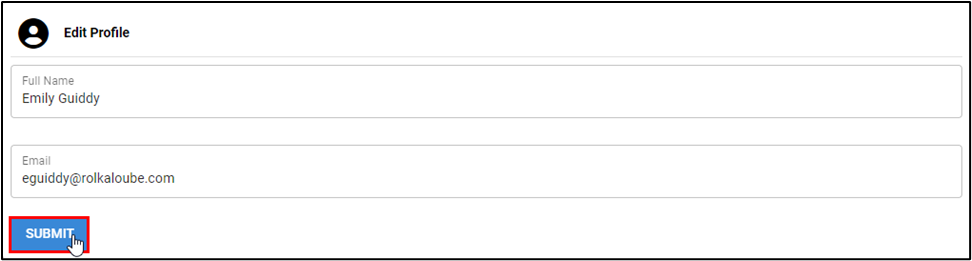
Use the following steps to edit the name or email address associated with your COTFA application profile.
-
Select your email address in the top right-hand corner of the screen.
-
Select Profile.
-
Edit the profile name or email address as needed.
Change Password
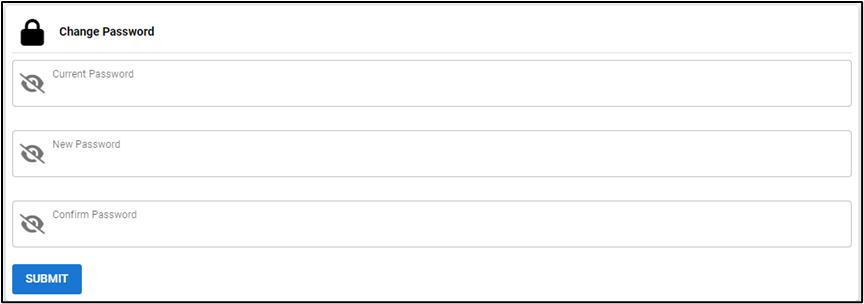
Use the following steps to change your password.
-
Select your email address in the top right-hand corner of the screen.
-
Select Profile. The User Profile page appears.
-
Enter your current password.
-
Enter your new password. Passwords require the following:
-
Must be at least 8 characters
-
Must contain at least one uppercase letter
-
Must contain at least one number
-
Must contain at least one symbol
-
-
Confirm your new password. Passwords must match.
-
Select Submit.