
Use the following steps to create a surcharge filing.
-
Log in to the COTFA application.
-
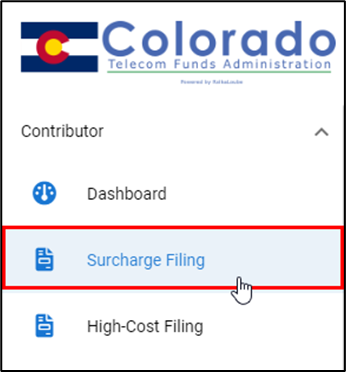
Select Surcharge Filing from the navigation panel. The Surcharge Filings page appears.

-
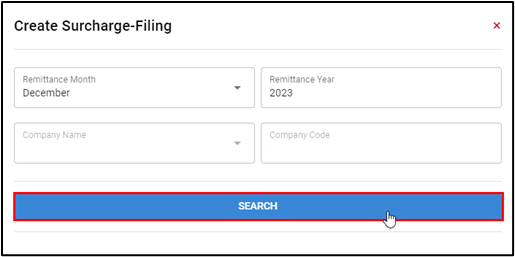
Select Create Surcharge. The Create Surcharge Filing pop-up appears.
-
Select the Remittance Month for the filing you want to create.
You can only create surcharge filings for the current or previous months. Surcharge filings cannot be created for future months.
-
Select the Remittance Year for the filing you want to create.
Company Name and Company Code cannot be changed.
-
Select Search to view any existing surcharge filings for the chosen month and year.
-
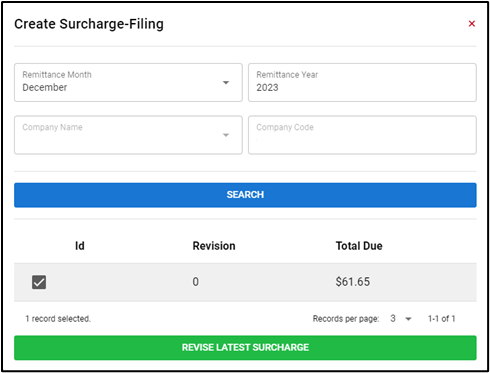
If there is an existing surcharge filing for the chosen month and year, then it will appear below the Search button. Continue to step 7.
-
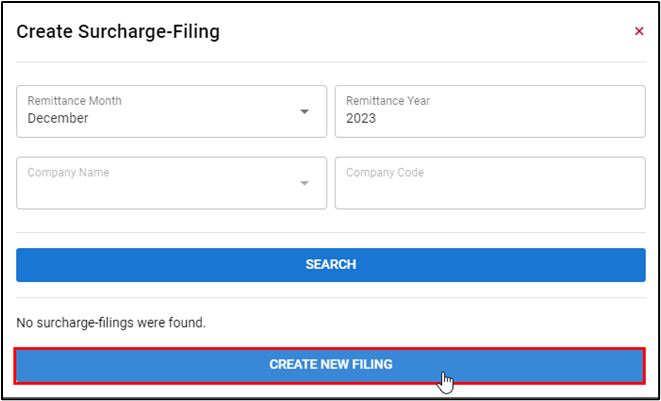
If there are no existing surcharge filings, then the message No surcharge filings were found appears below the Search button. Proceed to step 9.
-
-
Select the checkbox next to the existing surcharge filing you want to revise.
-
Select Revise Latest Surcharge to revise the selected existing surcharge filing.
-
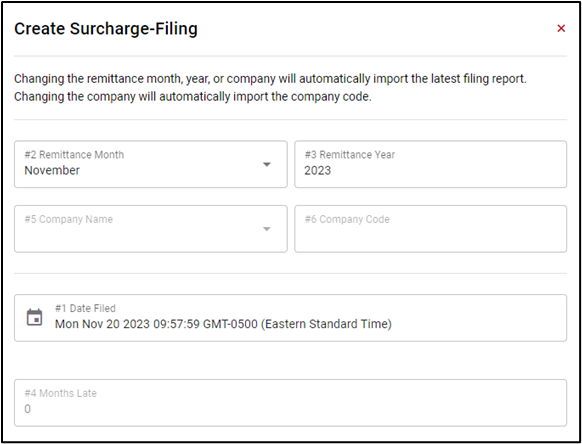
Select Create New Filing to create a new surcharge filing. The Create Surcharge Filing pop-up window appears.
-
Enter the necessary data to complete the surcharge filing. The following fields are required:
-
#7 Total TDM/Landlines
-
#8 Total Wireless Lines
-
#9 Total Voice-Over Internet Protocol Lines
-
#11 Total Federal Lifeline Customers
-
#12 Uncollected
-
Preparer Name
-
Preparer Email
-
Preparer Phone
-
Approved Name
-
-
Check the box at the bottom of the Create Surcharge Filing pop-up window to affirm that the information is correct and that you have the authority to submit the return on behalf of the company indicated above.
-
Select Create Original. The message Filing has been saved appears in green.